One click, two states
A green tray icon means ON, grey means OFF. Left-click to switch. Hover to see the live state, CPU % and RAM %.
A Windows tray switch that moves windowless background jobs onto fewer cores at lower priority. Nothing is stopped; one more click restores them.
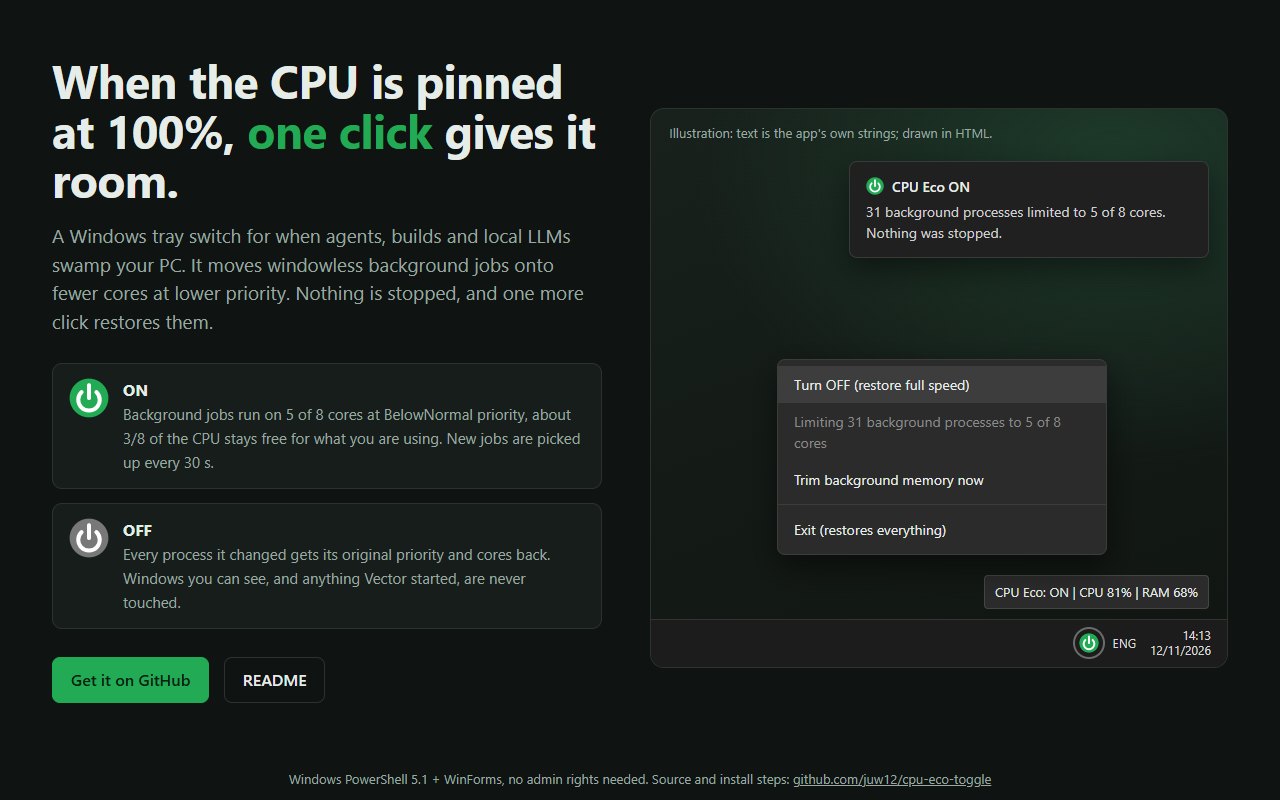
When AI agents, builds, local LLMs and long Python jobs pin the CPU at 100%, the PC you are sitting at turns sluggish.
Switched ON, it moves background workloads to fewer CPU cores (5 of 8 on an 8-core machine) and sets them to BelowNormal priority.
Run install_eco_toggle.ps1.
Start, CPU Eco Toggle, right-click, Pin to taskbar.
Click the tray icon or the pinned button to switch between ON and OFF.
A green tray icon means ON, grey means OFF. Left-click to switch. Hover to see the live state, CPU % and RAM %.
It only changes CPU affinity and priority. Every job keeps running; it just shares the machine more politely.
Processes with a visible window are skipped, only headless Edge counts, and anything Vector started is never touched.
While ON it picks up new background processes every 30 s. Child processes such as rustc inherit the limit from their parent, and OFF releases them too.
It records each process's original priority and cores, so OFF or Exit puts every one back the way it was.
Launching it again while it runs toggles the running copy, so a pinned taskbar shortcut works as an on/off switch.
Right-click, Trim background memory now releases RAM from windowless background processes; pages reload on demand.
From the README’s “Install” section. Full options, requirements and troubleshooting are there too.
Open the README$ powershell -ExecutionPolicy Bypass -File install_eco_toggle.ps1Straight from the README, so you know what you're getting before you try it.
Add demo page (illustration of tray menu, tooltip and notification) for GitHub Pages
Tray on/off switch that limits background CPU without stopping processes
The commands in the “Install” box above come straight from the README. Paste them into a terminal; the README covers options and troubleshooting.
Windows only: Windows PowerShell 5.1 and WinForms. Limits only processes named opencode, cargo, rustc, ollama, llama-server, python and pythonw, plus headless msedge.
The source is public on GitHub under the MIT licence.
Juwen Lie, an R&D mechanical engineer in Batam, Indonesia, as an independent personal project.
One click gives a pinned CPU room to breathe